Compact the clutter
Place less-used items behind the QuietBar divider and bring them back with a single click.
 QuietBar
A focused menu bar for macOS
QuietBar gives crowded menu bars room to breathe. Compact distracting icons, reveal them instantly, and stay focused without changing how your apps work.
Full-featured direct download also available on GitHub
Version 1.0 · macOS 13 Ventura or later · Free
Interactive demo
Zoom into the macOS menu bar, reveal the compacted items, then open the QuietBar panel to see what is running.
1Start by zooming into the menu bar.
See it in action
A real macOS recording of QuietBar revealing compacted menu bar apps, then walking through its everyday preferences.
Simple by design
QuietBar stays out of the way until you need it. Your apps keep running normally; only their menu bar items become easier to manage.
Place less-used items behind the QuietBar divider and bring them back with a single click.
See the applications behind menu bar items in a clear panel with their familiar app icons.
Launch QuietBar at login and choose when expanded items compact again.
No account, advertising, analytics, or remote server. QuietBar processes its information on your Mac.
Compact
QuietBar organizes the area around the notch and reduces the visual noise created by always-visible utilities.
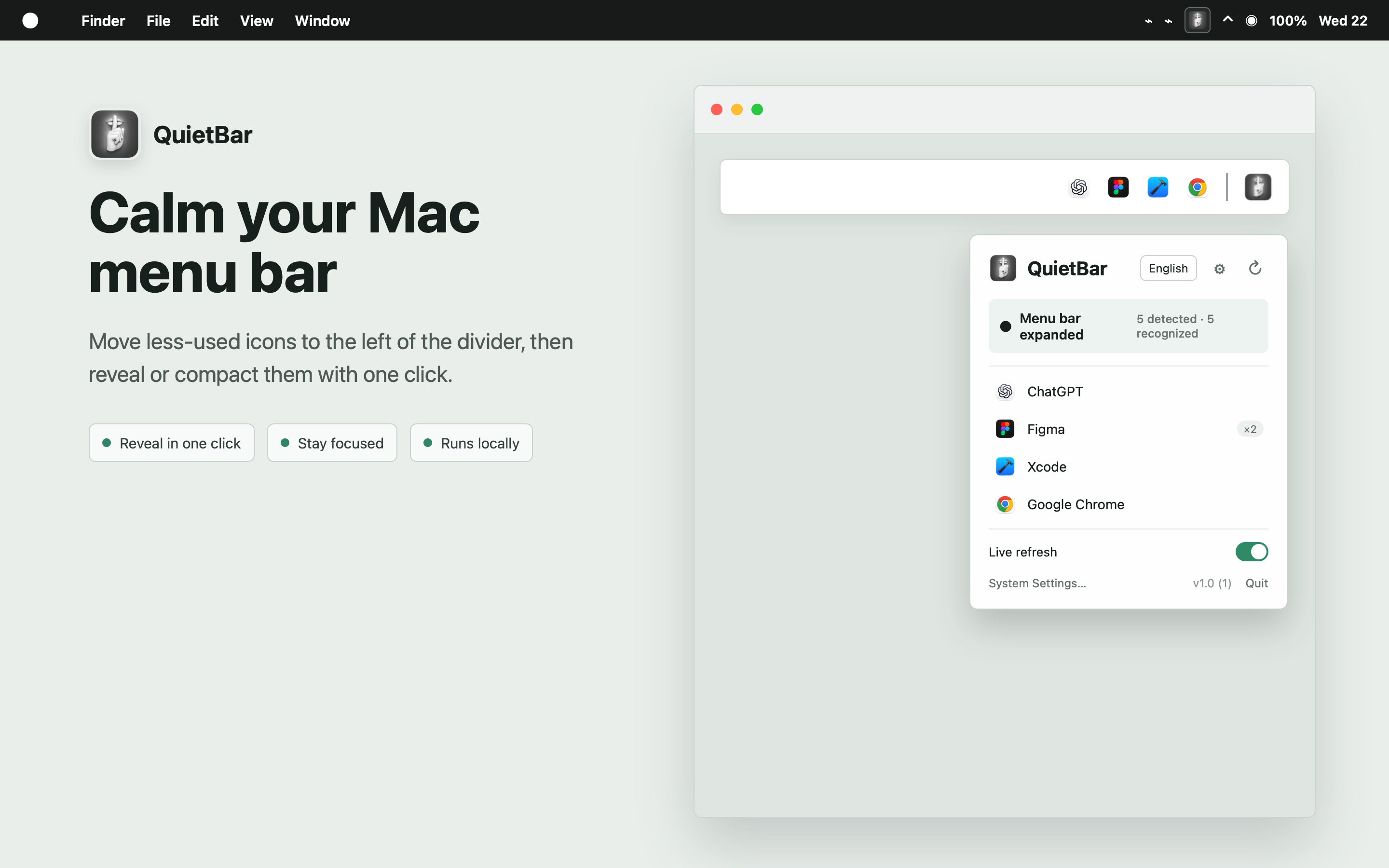
Recognize
The control panel pairs detected items with their application icons, so a crowded menu bar becomes understandable again.
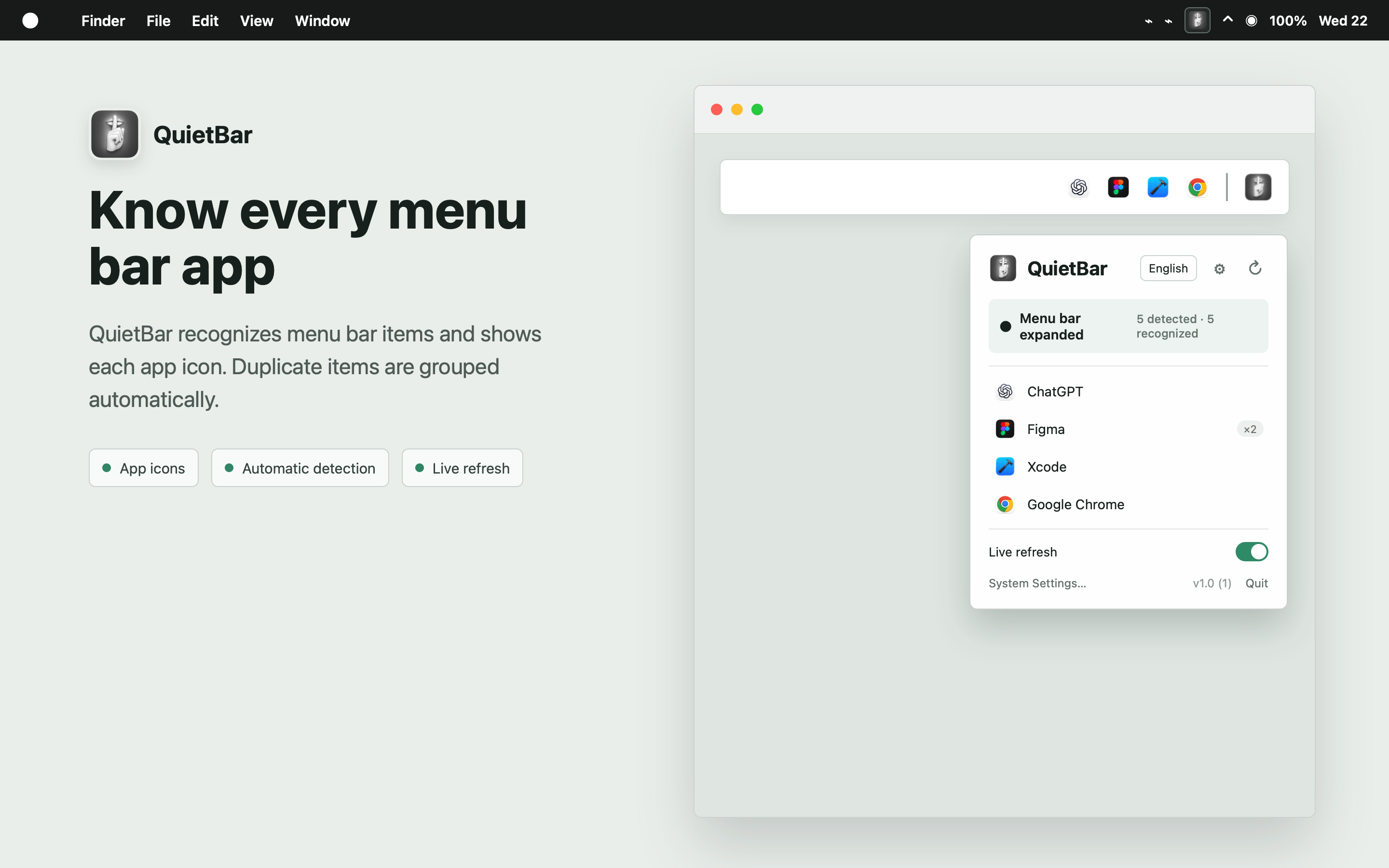
Personalize
Choose launch-at-login, automatic compact timing, live refresh, language, and keyboard shortcut preferences.
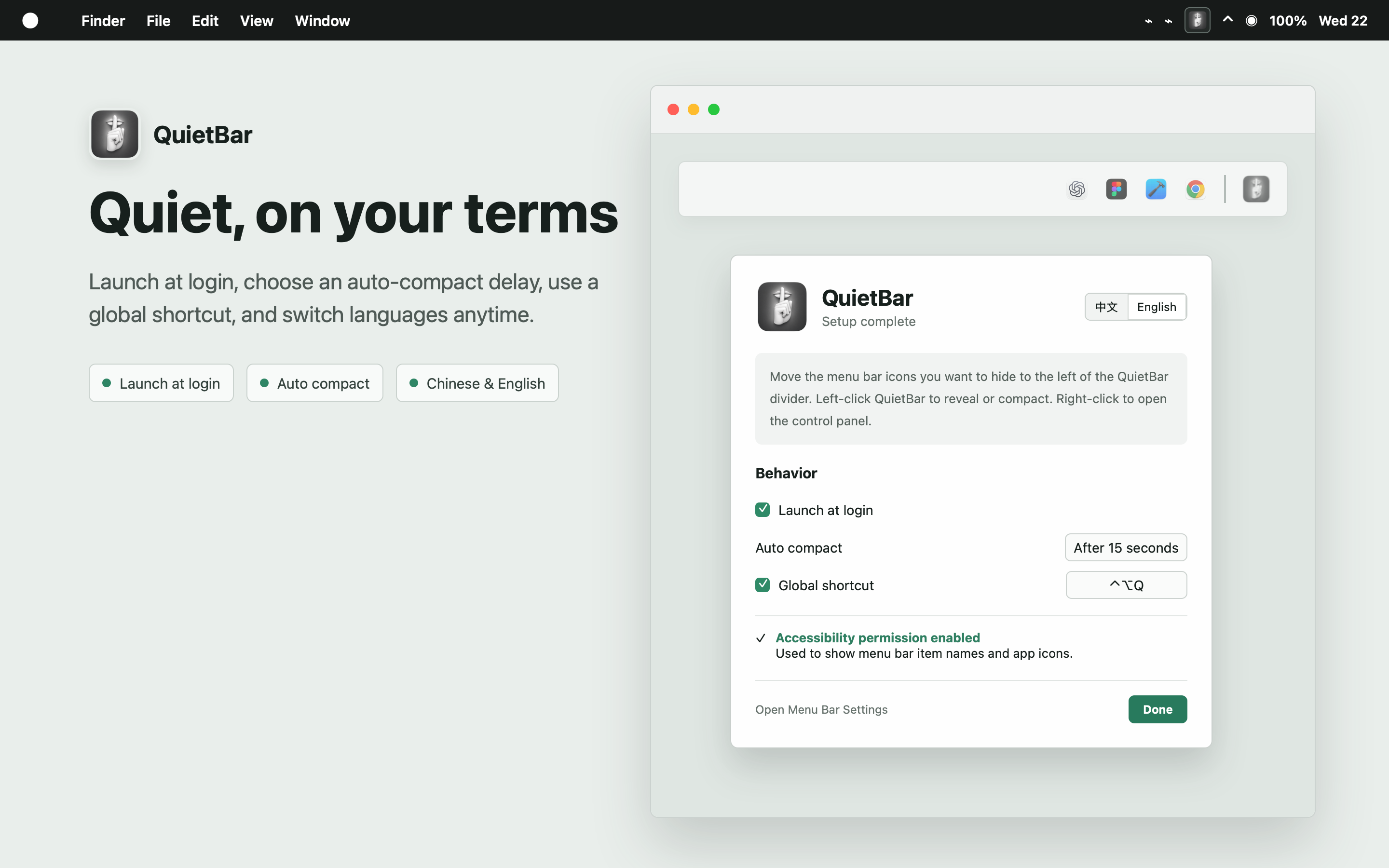
How it works
A divider appears in your macOS menu bar.
Hold Command and drag the items you want to compact to the left of the divider.
Use the QuietBar menu bar icon whenever you need those items.
Available now
QuietBar 1.0 is now available free on the Mac App Store. A notarized direct download with optional local app recognition remains available on GitHub.
Support
Include your macOS version and a short description of the issue when contacting support.